ERP Tutorial 7 — Bill of Materials: Multi-Level Structure & Live Cost Explosion
If you've followed this series through MRP (Tutorial 4) and Work Orders (Tutorial 6), you've already seen the Bill of Materials working behind the scenes — every time MRP exploded demand into component requirements, and every time a work order auto-loaded its material list. In this tutorial we go to the source: Manufacturing → Bill of Materials in the ERP sidebar.
The BOM Page at a Glance
The page header tells you what you're working with: 5 BOMs · Multi-level structure · Live cost explosion. Unlike a flat list-then-detail layout, this page is an expandable tree — every BOM opens in place, and every sub-assembly opens inside it.
Across the top you get:
- Search — by BOM ID, item name, or component, so you can answer "which BOMs use this part?" in one box
- Filters — All BOMs / Finished Goods / Sub-assemblies
- Expand All / Collapse All — open every level of every structure at once
Reading BOM-001 — SmartBar Pro 500
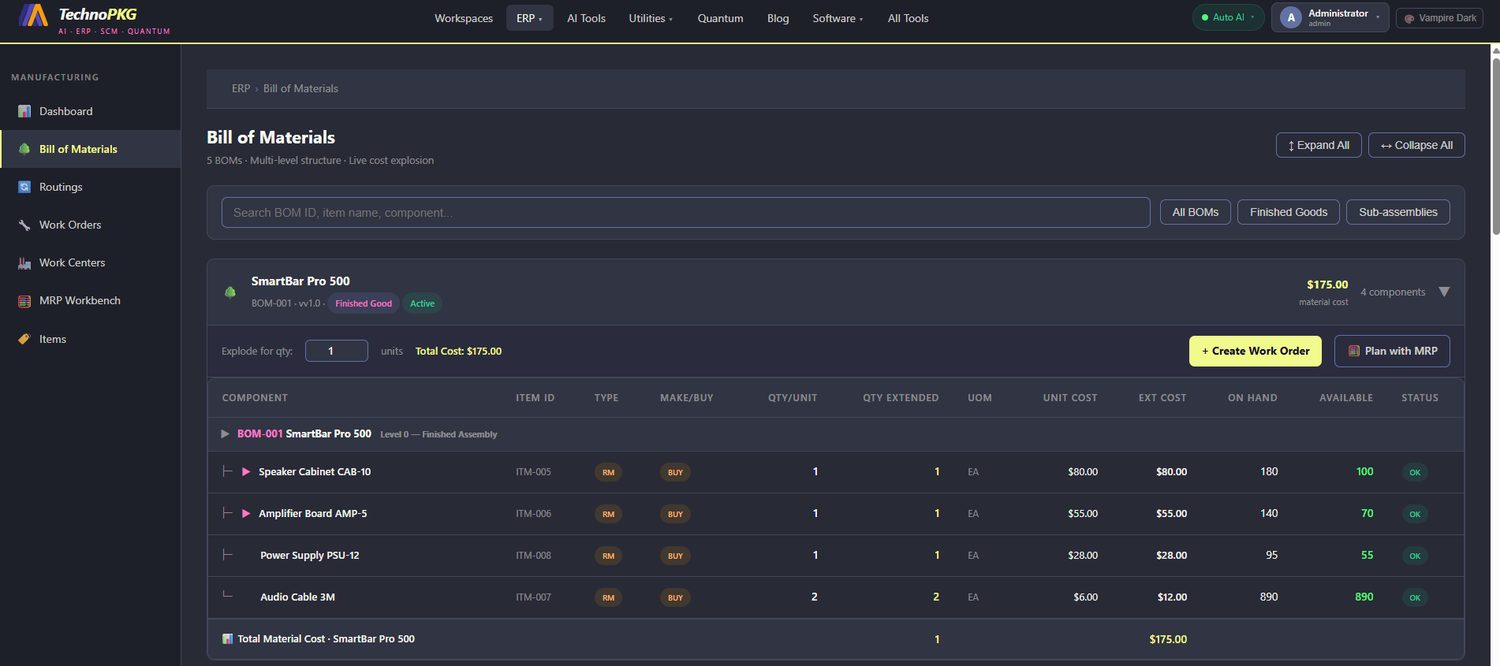
The first BOM in the list is BOM-001 · SmartBar Pro 500 · v1.0, tagged Finished Good and Active. The header row already gives you the two numbers a planner checks first: $175.00 material cost and 4 components.
Expanding it shows the Level 0 anchor — BOM-001 SmartBar Pro 500 — Level 0 · Finished Assembly — and the four Level 1 components underneath:
| Component | Item ID | Make/Buy | Qty/Unit | Unit Cost | Ext Cost | On Hand | Available | Status |
|---|---|---|---|---|---|---|---|---|
| Speaker Cabinet CAB-10 | ITM-005 | BUY | 1 | $80.00 | $80.00 | 180 | 100 | OK |
| Amplifier Board AMP-5 | ITM-006 | BUY | 1 | $55.00 | $55.00 | 140 | 70 | OK |
| Power Supply PSU-12 | ITM-008 | BUY | 1 | $28.00 | $28.00 | 95 | 55 | OK |
| Audio Cable 3M | ITM-007 | BUY | 2 | $6.00 | $12.00 | 890 | 890 | OK |
The footer row confirms the roll-up: Total Material Cost · SmartBar Pro 500 — $175.00. Do the math yourself: $80 + $55 + $28 + $12 = $175. Nothing hidden.
Three columns worth a closer look
Qty/Unit vs Qty Extended. Qty/Unit is the recipe — how many go into one SmartBar Pro 500. Qty Extended is that number multiplied by the explode quantity (more on that below). At quantity 1 they match; the Audio Cable line shows Qty/Unit 2 because each unit needs two cables.
On Hand vs Available. These are rarely the same number, and the gap is the story. Speaker Cabinet CAB-10 shows 180 on hand but only 100 available — 80 cabinets are already allocated to existing demand (open work orders and the plans we created in Tutorials 4–6). The Amplifier Board (140/70) and Power Supply (95/55) tell the same story. Only the Audio Cable, with 890 of 890 available, is completely unclaimed. This is the same allocation logic you saw driving the Inventory position in Tutorial 3.
Status. All four lines show OK — available stock covers the exploded quantity. Push the explode quantity high enough and this is where shortages would surface.
Going Multi-Level
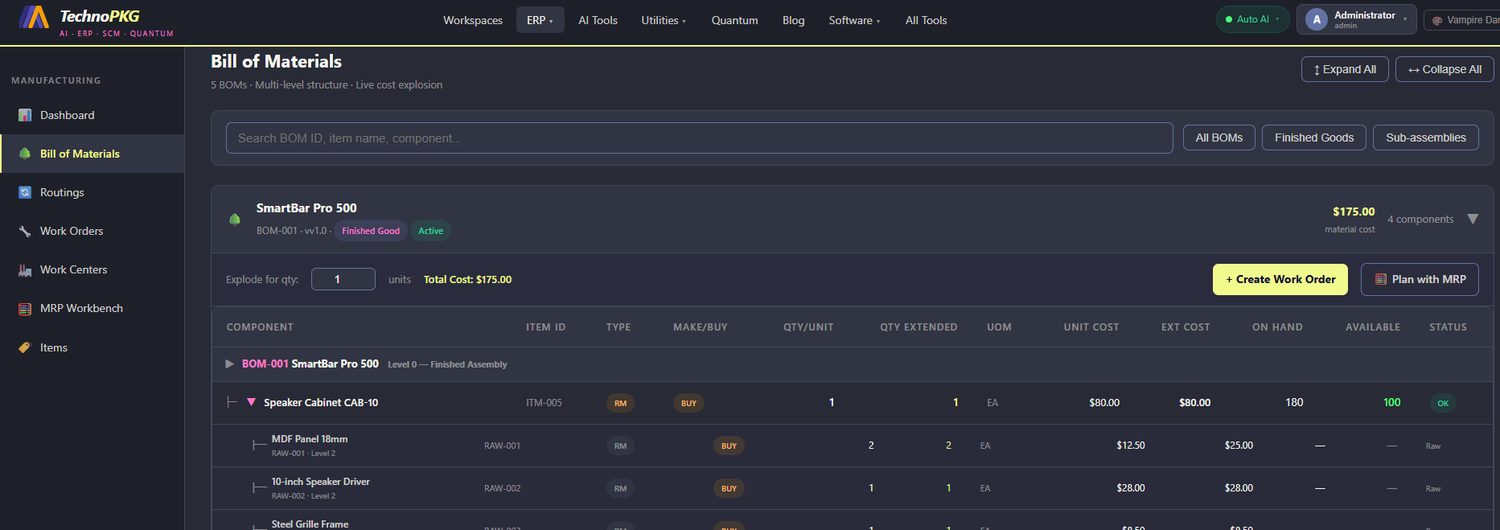
Here's where the "multi-level structure" in the page header pays off. The Speaker Cabinet CAB-10 has an expand arrow of its own. Click it, and its Level 2 raw materials open inline:
| Component | Item ID | Make/Buy | Qty/Unit | Unit Cost | Ext Cost |
|---|---|---|---|---|---|
| MDF Panel 18mm | RAW-001 | BUY | 2 | $12.50 | $25.00 |
| 10-inch Speaker Driver | RAW-002 | BUY | 1 | $28.00 | $28.00 |
| Steel Grille Frame | RAW-003 | BUY | 1 | — | |
Notice two things. First, the Level 2 rows are tagged Raw in the status column and show dashes for On Hand/Available — raw materials at this depth are costed into the structure but tracked at their own item level. Second, this is exactly the tree MRP walks in Tutorial 4: demand for the SmartBar becomes demand for cabinets, which becomes demand for MDF panels — two panels per cabinet, one level at a time.
Live Cost Explosion
Above the component table sits an Explode for qty box, defaulting to 1 unit with Total Cost: $175.00. Change the quantity and every Qty Extended, Ext Cost, and Status cell recalculates live. It answers the planner's question instantly: what does a batch of 50 cost in materials, and do we have the parts? (50 × $175 = $8,750 — and 100 audio cables, which is why that 890 available matters.)
Actions: Where the BOM Goes Next
Two buttons sit right on the BOM header, and both should look familiar:
- + Create Work Order — spawns a work order for the SmartBar Pro 500 with this BOM auto-loaded as its material list. That's the auto-load you saw in Tutorial 6.
- Plan with MRP — hands the item to the planning engine from Tutorial 4, which explodes this exact structure against open demand and stock.
This is the point of the page: the BOM isn't documentation, it's the live structure that MRP, S&OP, and Work Orders all consult. If a plan looks wrong anywhere in the ERP, this tree is usually the first place to check.
Try It Yourself
- Open ERP → Manufacturing → Bill of Materials and hit Expand All to see all 5 structures at full depth.
- On BOM-001, compare On Hand vs Available on the Speaker Cabinet line — then open Work Orders and find the demand consuming those 80 units.
- Set Explode for qty to 100 and watch which component's Status breaks first.
- Use the Sub-assemblies filter to see which structures feed into others.
Next up: Tutorial 8 — Routings & Work Centres, the how to this page's what: the operations, work centres, and run times that turn these components into a finished SmartBar Pro 500.
Comments (0)