ERP Tutorial 6 — Work Orders: BOM Explosion, Routing & Plan-to-Produce
This is where the whole series converges. Sales Orders created demand (Tutorial 1), MRP planned it (Tutorial 4), and S&OP committed to it (Tutorial 5) — work orders are where the plan finally becomes production. Open ERP → Work Orders, subtitled DP Sound Systems Inc — Plan-to-Produce.
The Work Orders List
Each row is one production run, and each carries its BOM and Routing badge — the what and the how attached to every order:
| WO ID | Item | Qty | BOM | Routing | Status |
|---|---|---|---|---|---|
| WO-2025-0001 | SmartBar Pro 500 | 10 | BOM-001 | RTG-001 | Released |
| WO-2026-0620-0002 | SmartBar Pro 500 | 5 | BOM-001 | RTG-001 | Draft |
| WO-SOP-025-Q3-ITM-001 | SmartBar Pro 500 | 130 | BOM-001 | RTG-001 | Draft |
| WO-SOP-025-Q3-ITM-002 | HomeTheatre HT-700 | 42 | BOM-002 | RTG-002 | Draft |
| WO-SOP-025-Q3-ITM-003 | PortablePA PA-200 | 168 | BOM-003 | RTG-003 | Draft |
| WO-2026-0705-0006 | PortablePA PA-200 | 1 | BOM-003 | RTG-003 | Completed |
Look at the middle three IDs. Those are the exact work orders the S&OP run created in Tutorial 5 — WO-SOP-025-Q3-ITM-001/002/003, one per finished good, sitting in Draft and waiting for a planner to release them. The plan we watched being made is now a queue of real production.
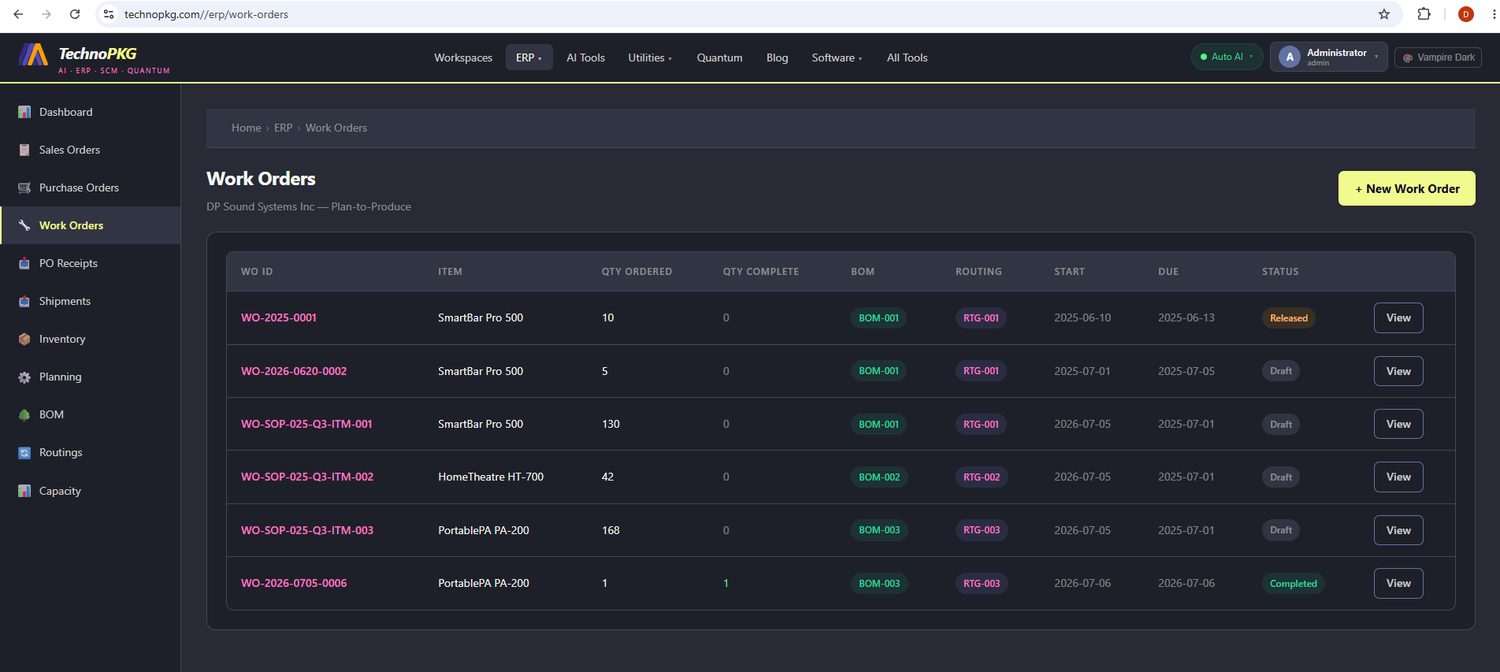
The status column also previews the lifecycle: Draft (planned, not yet on the floor) → Released (in production) → Completed (finished and received into stock). We'll walk one order through the last step below.
Anatomy of a Work Order
Click View on WO-2025-0001 and the detail page opens: WO-2025-0001 — SmartBar Pro 500 · Qty: 10 · Start: 2025-06-10 · Due: 2025-06-13 · SO: SO-2025-0001, status Released, with two action buttons — Issue Components and Complete WO.
That SO: SO-2025-0001 reference in the header is demand traceability: this production run exists because of a specific customer order — the very first sales order from Tutorial 1. From customer promise to factory floor in one clickable link.
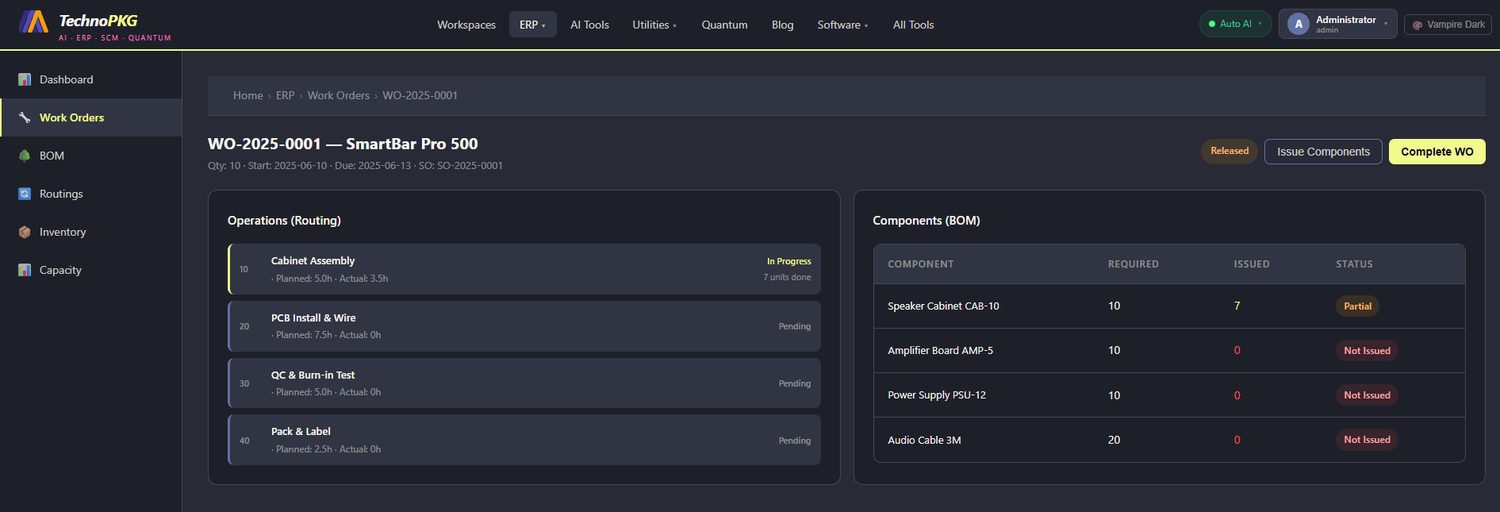
The page splits into the two halves every work order is made of.
Operations (Routing) — the how
The left panel lists the four operations from RTG-001, in sequence:
| Op | Operation | Planned | Actual | Status |
|---|---|---|---|---|
| 10 | Cabinet Assembly | 5.0h | 3.5h | In Progress — 7 units done |
| 20 | PCB Install & Wire | 7.5h | 0h | Pending |
| 30 | QC & Burn-in Test | 5.0h | 0h | Pending |
| 40 | Pack & Label | 2.5h | 0h | Pending |
Planned hours total 20 for the batch. Operation 10 is live shop-floor status: 3.5 of 5 planned hours consumed and 7 of 10 units through assembly. This planned-vs-actual pair per operation is the raw material for capacity planning — a topic we'll return to when the series reaches the Capacity page.
Components (BOM) — the what
The right panel is BOM-001 exploded for this order's quantity:
| Component | Required | Issued | Status |
|---|---|---|---|
| Speaker Cabinet CAB-10 | 10 | 7 | Partial |
| Amplifier Board AMP-5 | 10 | 0 | Not Issued |
| Power Supply PSU-12 | 10 | 0 | Not Issued |
| Audio Cable 3M | 20 | 0 | Not Issued |
Check the math on the last line: the order is for 10 units, but 20 cables are required — because the BOM calls for 2 cables per unit. Requirements here are always BOM quantity-per times order quantity. And the issue status mirrors the shop floor: 7 cabinets issued for the 7 units through assembly, everything else still waiting in stores. Issuing components is what moves stock out of on-hand inventory — the allocation side of the numbers you read in Tutorial 3.
Completing the Work Order
Click Complete WO and the system closes the loop with a confirmation banner:
✓ WO-2025-0001 completed. 10 units added to inventory.
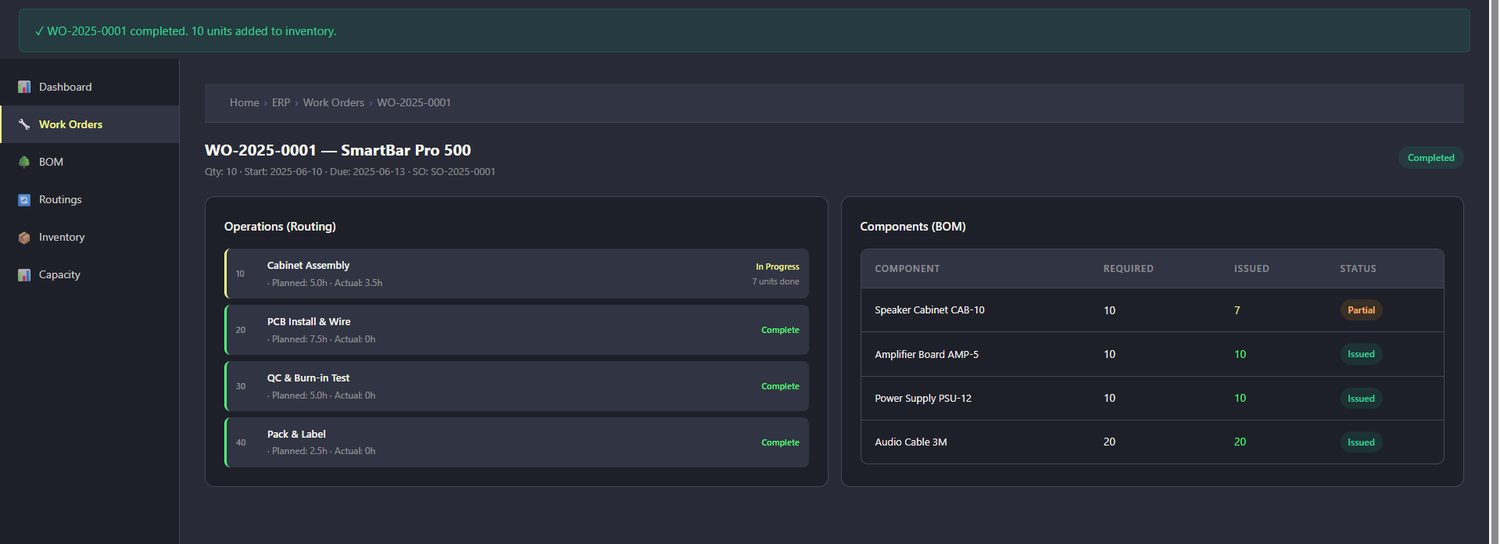
The status chip flips to Completed, the remaining operations mark Complete, and the component lines settle — Amplifier Board 10/10, Power Supply 10/10, Audio Cable 20/20, all Issued. The consequence lands in two other modules at once: raw components left inventory, and 10 finished SmartBar Pro 500s entered it, ready to fulfil SO-2025-0001. That single banner line is the entire plan-to-produce promise: demand in, product out.
The Lifecycle in One Line
Draft (created by S&OP, MRP, or by hand) → Released (components issue, operations log hours) → Completed (finished goods received into stock). Every work order in the list above is at one of these three stations.
Try It Yourself
- Open ERP → Work Orders and find the three WO-SOP-025-Q3 orders — then reread the plan in Tutorial 5 that created them.
- Open WO-2025-0001 and follow the SO-2025-0001 link back to the original sales order from Tutorial 1.
- Compare the Audio Cable requirement (20) with the order quantity (10) and confirm the quantity-per against the BOM page.
- Watch a component line change status when you use Issue Components on a released order.
Next up: Tutorial 7 — Bill of Materials, a close look at the structure every one of these work orders was born from: BOM-001's multi-level tree and its live cost explosion.
Comments (0)